Your Photos, Now in Immersive 3D VR
See real converted results for free, then turn your own photos into VR-ready SBS 3D images.
 Private, opt-in cloud saving
  Real converted examples
  Quest-ready SBS output
 How It Works
Upload Your Photo
Supports JPEG, PNG, and WebP. Nothing to install.
AI Converts to 3D
Our AI creates a realistic side-by-side 3D image.
View in VR
Preview immediately in our built-in WebXR viewer or download to view in your own VR Viewer.
See real Photo2VR results before you spend
See real examples of photos transformed by Photo2VR.
Free preview. No sign-up or app download required.





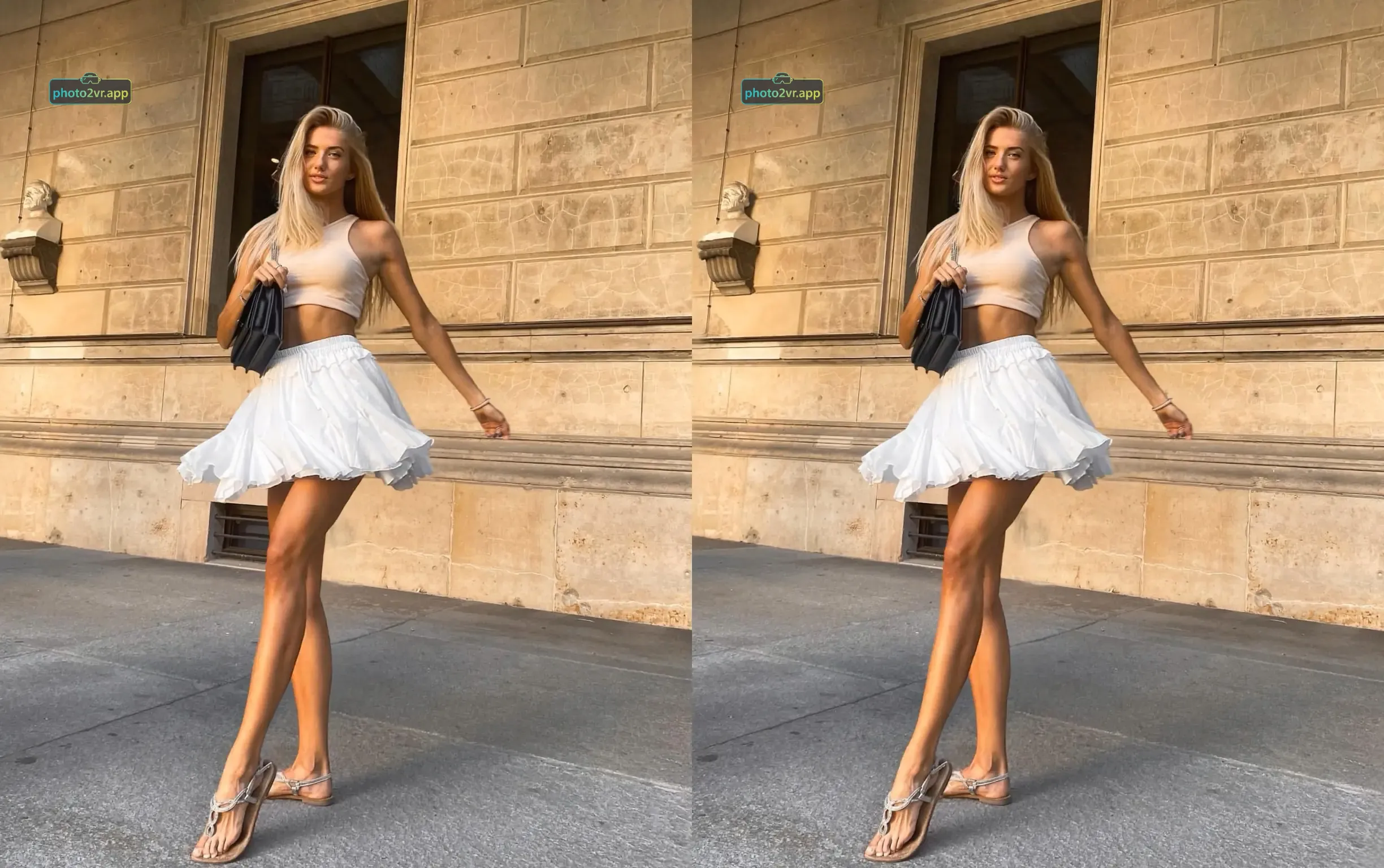



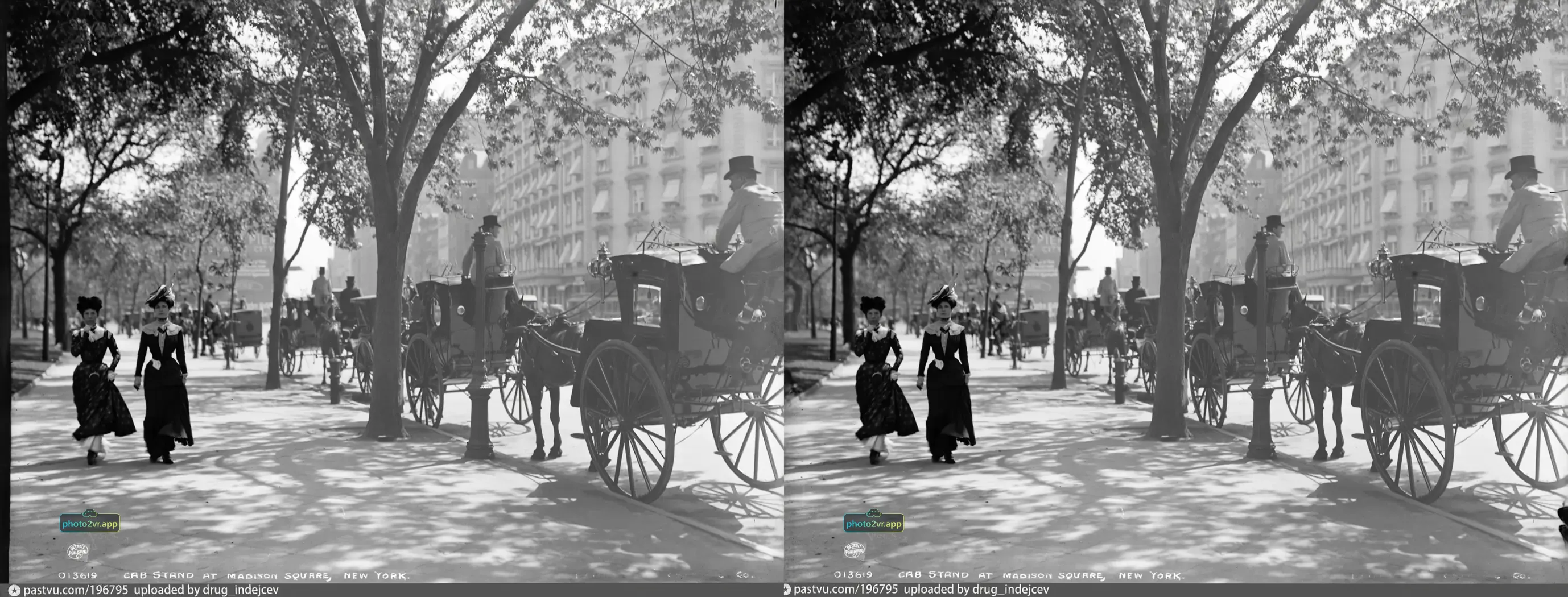

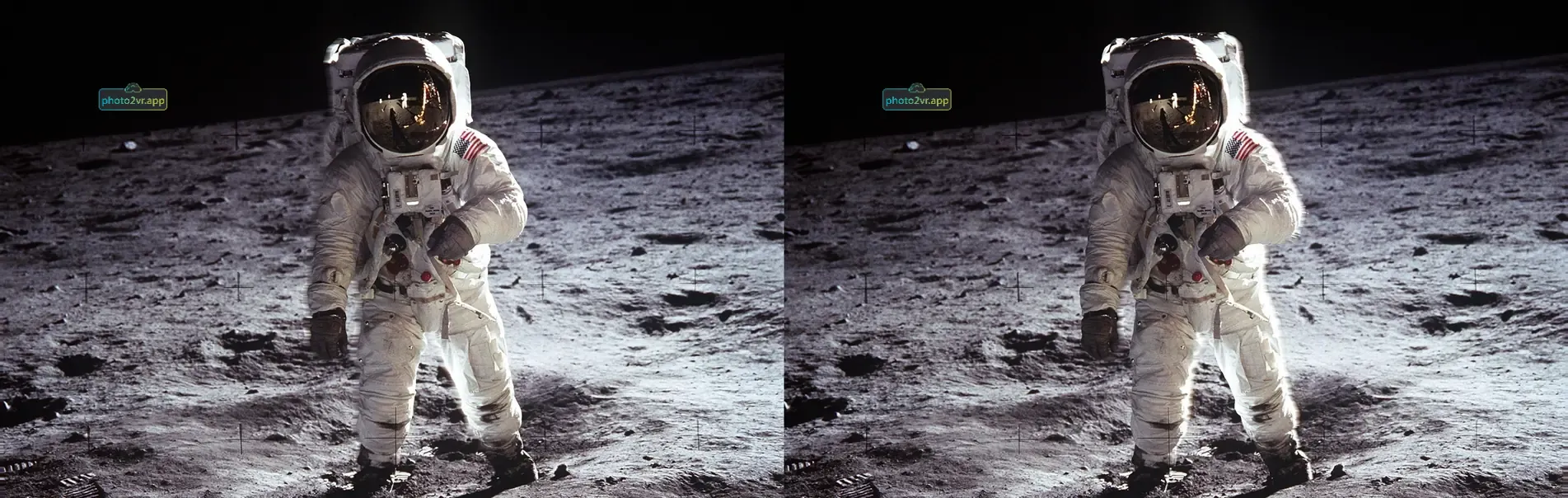
Powerful Ways to Transform
Bring your photos and videos into 3D, then take your saved photo library with you.
3D SBS Conversion
Turn photos into immersive side-by-side 3D images, ready to enjoy in your VR headset.
Video2VR
Convert short clips into SBS 3D videos. Use your existing account and credits.
3D Motion Photos
Bring still photos to life with 3D depth and parallax motion. Export as SBS video.
AI Upscaling
Upscale low-resolution photos to 4K+ for sharper detail before 3D conversion.
VR Viewer & Gallery
High-quality 3D viewing in your browser, with one gallery for local and saved cloud media.
Cloud Storage
Included with your subscription. Opt in to save converted media privately and access it on any device.
What Users Are Saying
Feedback from our early adopters
Your app is really the first on the web (at least that I know of) to offer such a complete package. I was particularly impressed by your VR viewer, which worked perfectly in the browser of my VR glasses without any problems. Great job! 👏

These have a nice 3d effect. I didn't try them in VR, but I did swap the images so I could try the cross-eyed technique and the effect is pretty good.
Cool, instagram has this built in but I was hoping to be able to view photos without having to post to insta.
Your Privacy Matters
We process your uploaded photos temporarily and delete them automatically after conversion. Subscribers can opt in to save converted media to cloud storage.
Simple, Clear Pricing
Start with 10 images for $3, then choose a larger pack only if you want more.
Trial Pack
A one-time, low-risk test run
Lite Pack
Great for casual use
Starter Pack
Pro Pack
Secure Stripe payment Cancel anytime  No long-term commitment
 Frequently Asked Questions
Creating photos and videos
What can I do with Photo2VR?
Photo2VR turns ordinary photos into side-by-side (SBS) 3D images using AI-generated depth. You can also create 3D motion photos, upscale images and convert video clips with Video2VR. The web app includes a viewer and Library for your SBS media, with no software installation required.
Which photo formats can I upload?
You can upload JPEG, PNG and WebP photos. Start with a clear, high-quality image for the best results. AI estimates depth from a single photo, so the result may need adjustment around fine details or overlapping subjects.
Can I convert videos, and do I need a separate account?
Yes. Video2VR converts short video clips into SBS 3D videos using your existing account and credits. Choose the conversion engine, clip length and upscaling options before submitting. The displayed credit cost reflects your selected options.
Is the Meta Quest app the same as the web app?
The Meta Quest app offers a dedicated photo-to-3D workflow. Use the web app for tools such as Video2VR, motion photos, upscaling and the web Library. Quest app purchases and credits are separate from your web account; they are not automatically shared between the two.
Viewing, privacy and storage
How do I view my 3D media, and which headsets work?
Open Library from your dashboard, select SBS media and choose Enter VR in a supported headset browser. You can also open existing SBS files in the free viewer. Downloaded SBS media can be viewed in compatible players on headsets such as Meta Quest, Apple Vision Pro and Pico. The built-in immersive viewer specifically requires WebXR Layers support; support for SBS files does not guarantee that a headset browser can run it.
Open the free viewerWhat is the difference between on-device and cloud media?
On-device imports stay in the browser where you added them and are never uploaded to cloud storage. They are not automatically available in another browser or on another device, and clearing browser data can remove them. Cloud media is saved privately to your account and can be accessed from other devices when you sign in and have cloud access. Keep your own copies of important files.
How do I enable cloud storage, and how much is included?
Cloud storage is included with eligible paid subscriptions: Lite includes 5 GB, Starter 15 GB and Pro 50 GB. Saving is off until you opt in through the subscriber prompt or Account Settings → Cloud library. Once enabled, new eligible converted photos, upscales, motion photos and completed Video2VR outputs are saved automatically. Existing outputs and on-device imports are not uploaded. You can turn saving off in Account Settings; this stops new and pending saves without deleting files already saved.
What happens to cloud storage if I cancel, downgrade or fill it?
Canceling renewal preserves cloud access for the period you have already paid for. Saving requires eligible subscription access and enough available storage. If a lower allowance takes effect and your usage exceeds it, or your storage is full, new saves cannot complete until you free space or increase your allowance. Existing files are not automatically deleted simply because subscription access ends, but viewing and downloading require cloud access. Check Library for your current allowance and access status, and download important files before access ends.
What happens to my uploaded photos?
Source photos are processed temporarily and deleted automatically. If you opt in to cloud saving, eligible converted outputs are retained privately in your account instead of being only temporary results. On-device Library imports stay in your browser. See the privacy policy for details about processing, storage and deletion.
Read the privacy policyCredits and subscriptions
How many credits does each tool use?
A standard SBS photo conversion costs 1 credit. Other tools, including motion photos, upscaling and Video2VR, have their own costs. Check the displayed cost before starting; video costs depend on the selected clip length and processing options. Your web account uses the same credit balance across Photo2VR and Video2VR.
Should I choose monthly, yearly or one-time credits?
Monthly subscriptions provide a credit allocation each month. Yearly subscriptions provide all yearly credits upfront, with pricing equivalent to two months free compared with monthly billing. One-time packs add credits without a recurring payment and can be purchased alongside a subscription. Subscription plans also include their cloud-storage allowance; buying a one-time pack does not add cloud storage.
How do monthly renewal bonuses work?
Each successful monthly renewal adds bonus credits on top of the regular allocation: +10 for Lite, +20 for Starter and +90 for Pro. These are renewal bonuses, not an extra bonus on the first payment. Yearly subscriptions use their yearly allocation rather than monthly renewal bonuses.
Can I cancel, and what happens to unused credits?
You can cancel renewal from Account Settings. Your subscription remains active through the paid billing period. Subscription credits roll over without expiring while the subscription is active; when it ends, remaining credits from that subscription receive a one-year expiry. One-time credits expire one year after purchase. Canceling does not turn subscription credits into permanent credits or extend the expiry of separately purchased packs.


